Excel to a Gantt chart converter assisted by AI
Stop managing projects in rows and columns. Turn Excel into a Gantt chart and instantly visualize tasks, dependencies, milestones, and resources on a timeline.


Now, you can view the file.
There is only one step left: register in GanttPRO.
It will take not more than 1 minute.


 ()
()1M+ project managers build and
manage Gantt charts with GanttPRO
How to turn an Excel sheet into a Gantt chart
- Step 1
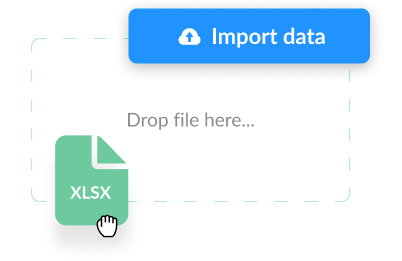
Import your Excel spreadsheet with drag and drop
Prepare your project data in XLSX or CSV format and import it into GanttPRO.
- Step 2
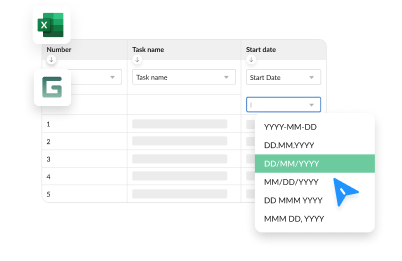
Review the mapping and refine the data
Map columns and resources and GanttPRO will prepare data for visualization.
- Step 3
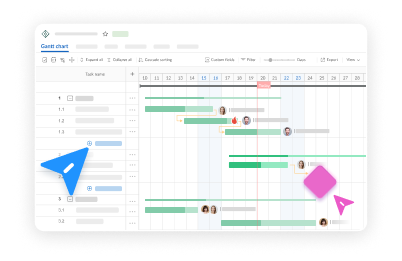
Customize your chart and collaborate on it
Add dependencies and milestones, adjust dates and duration, assign resources, and collaborate with your team in real time.
Benefits of using GanttPRO as an Excel to a Gantt chart converter
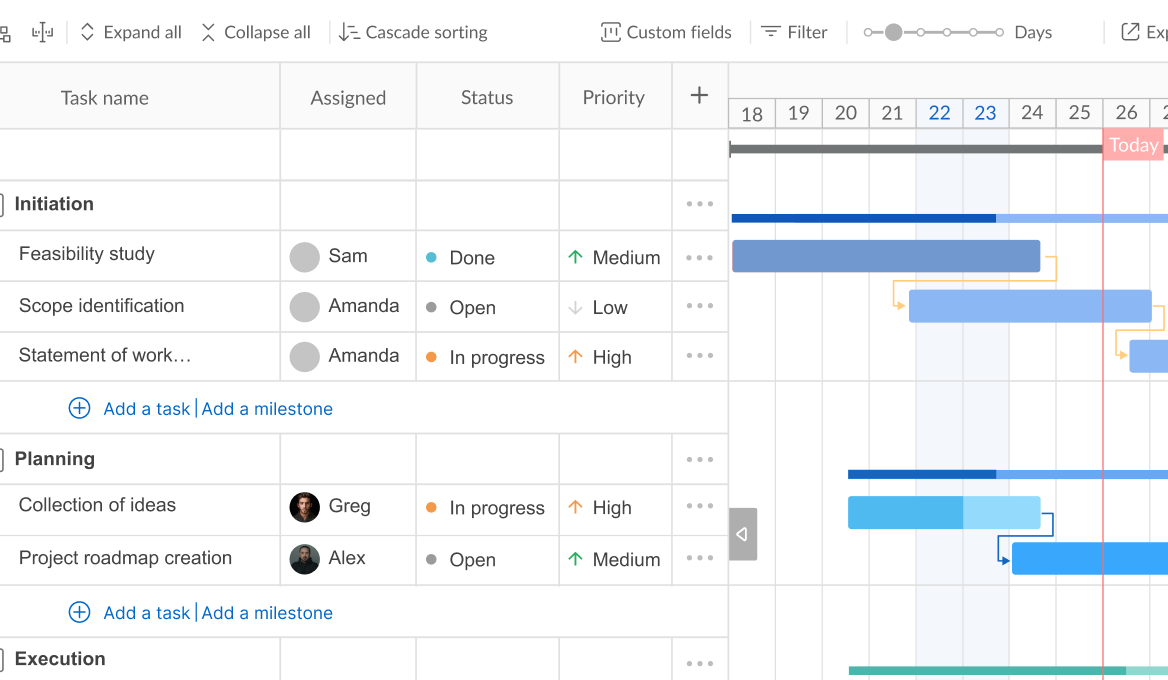
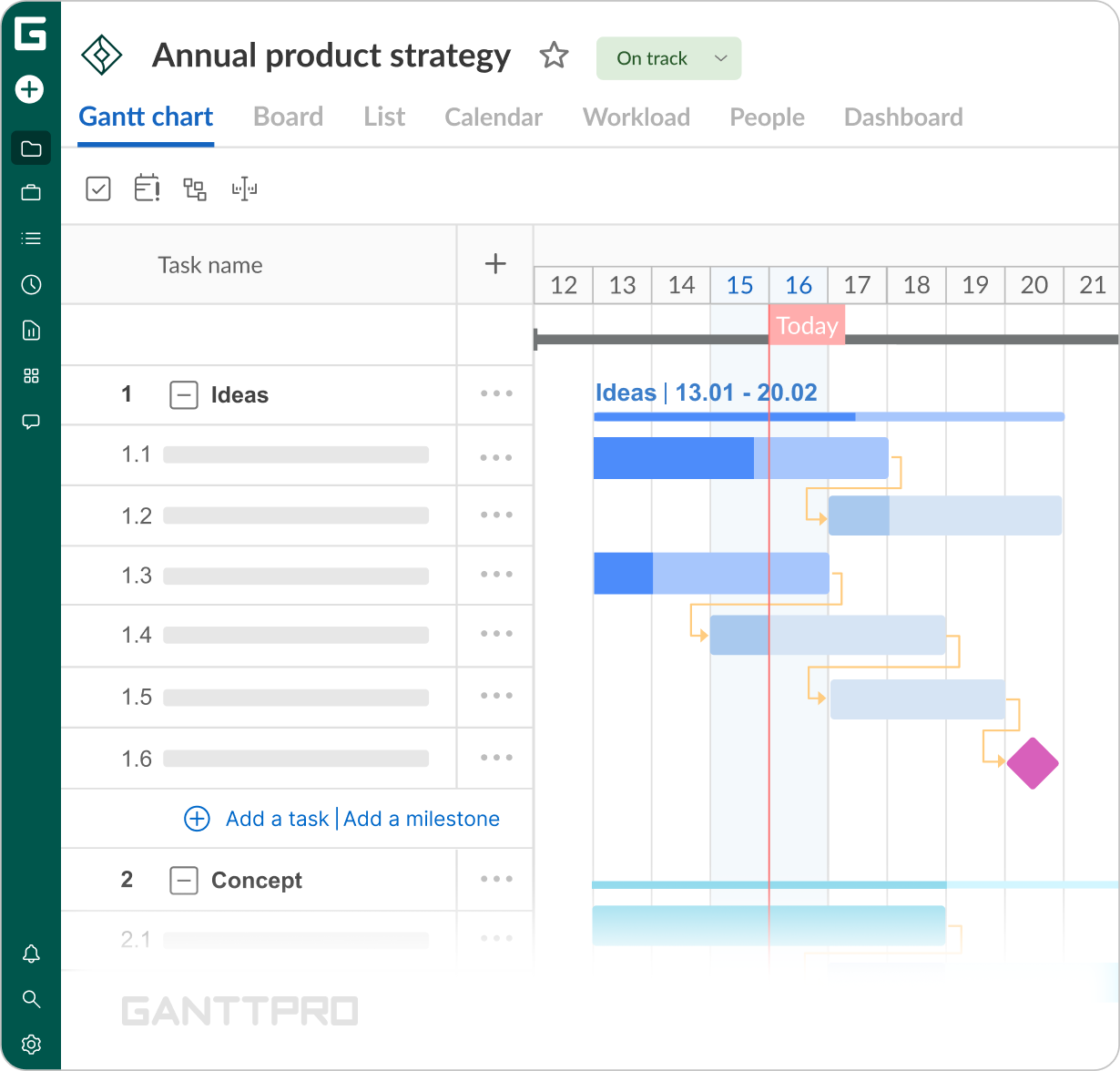
Instead of static rows and columns, you'll get a visual timeline with all of your tasks — an instant transition from data in cells to real project management assisted by AI.
A Gantt chart in GanttPRO is more than just a timeline.
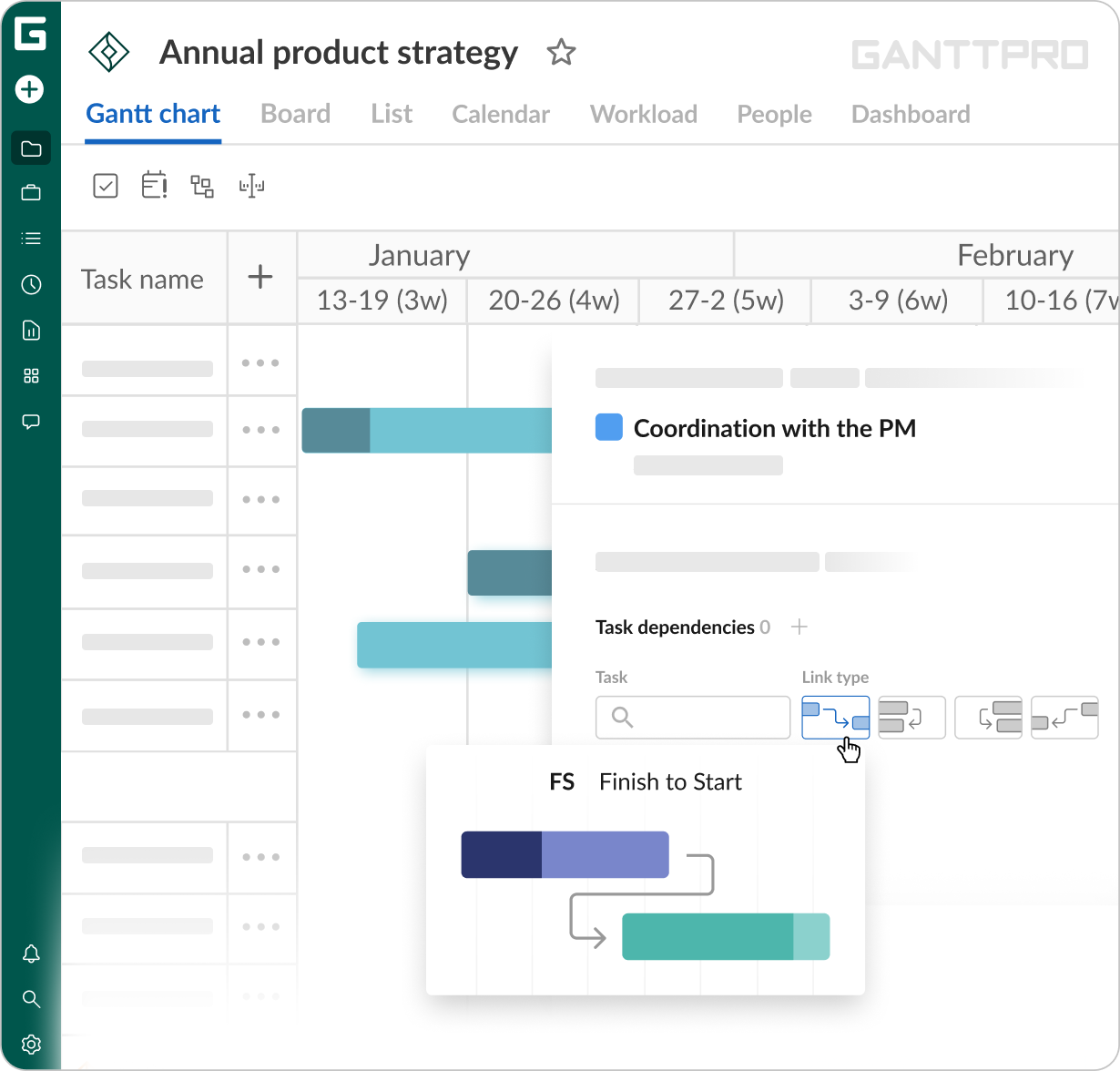
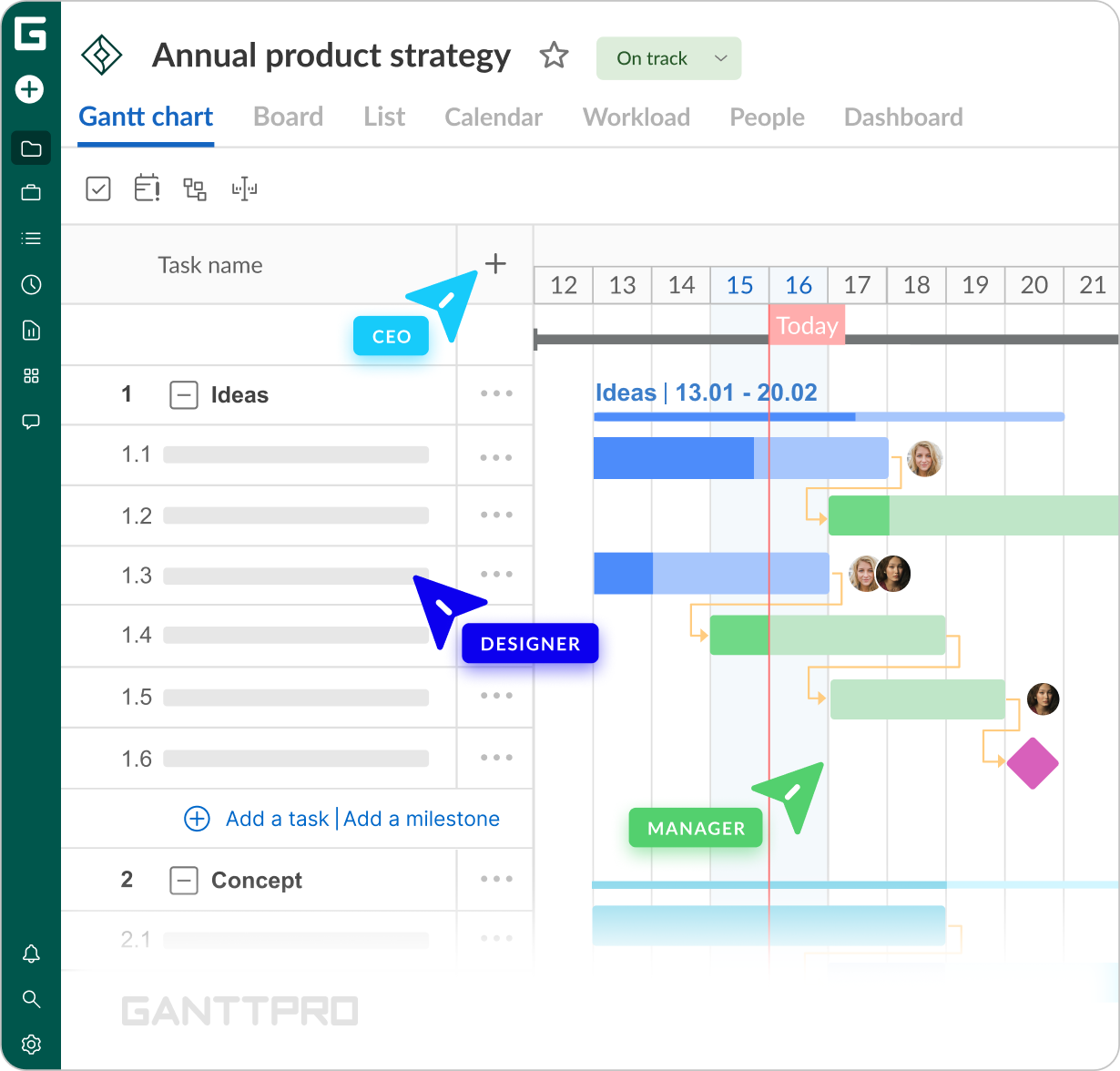
With autoscheduling, your project plan stays organized even when unexpected changes or shifts occur.GanttPRO supports all four types of task dependencies, including lags and leads.
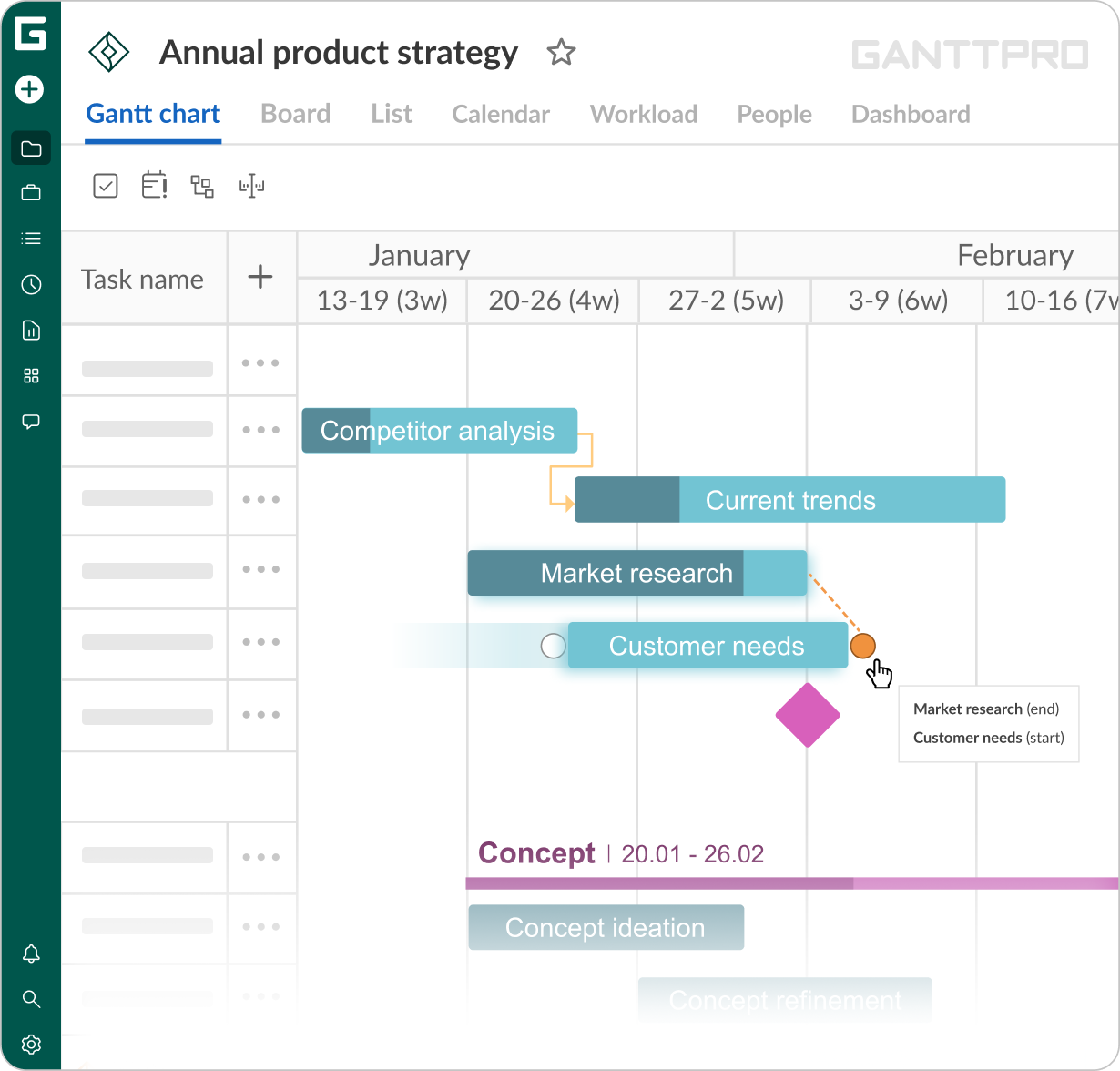
Build a logical project structure and see how tasks relate to each other on a visual timeline.Milestones are your guiding lights throughout every project phase.
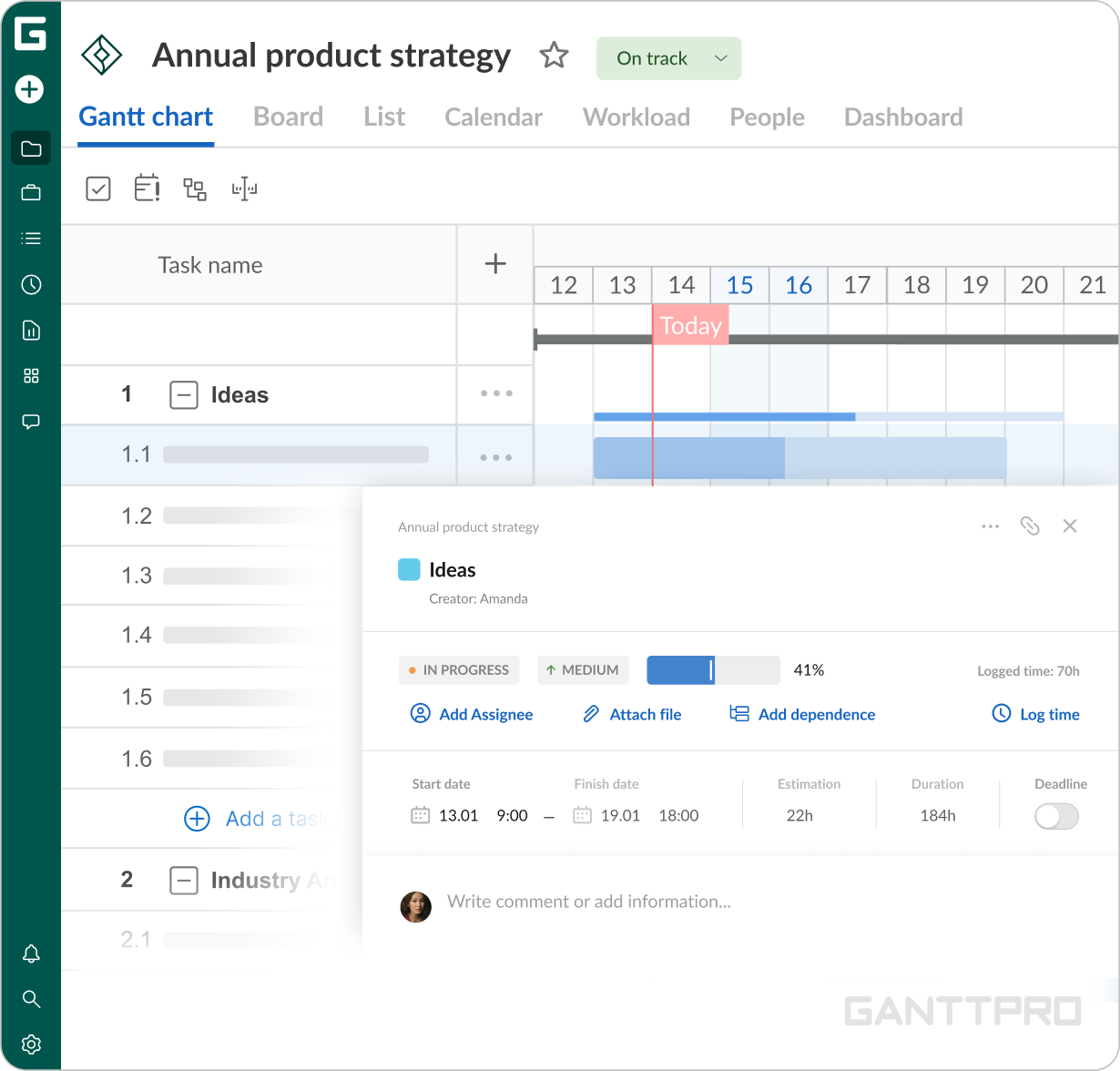
Define clear key events and keep track of every detail.See how your project is progressing.
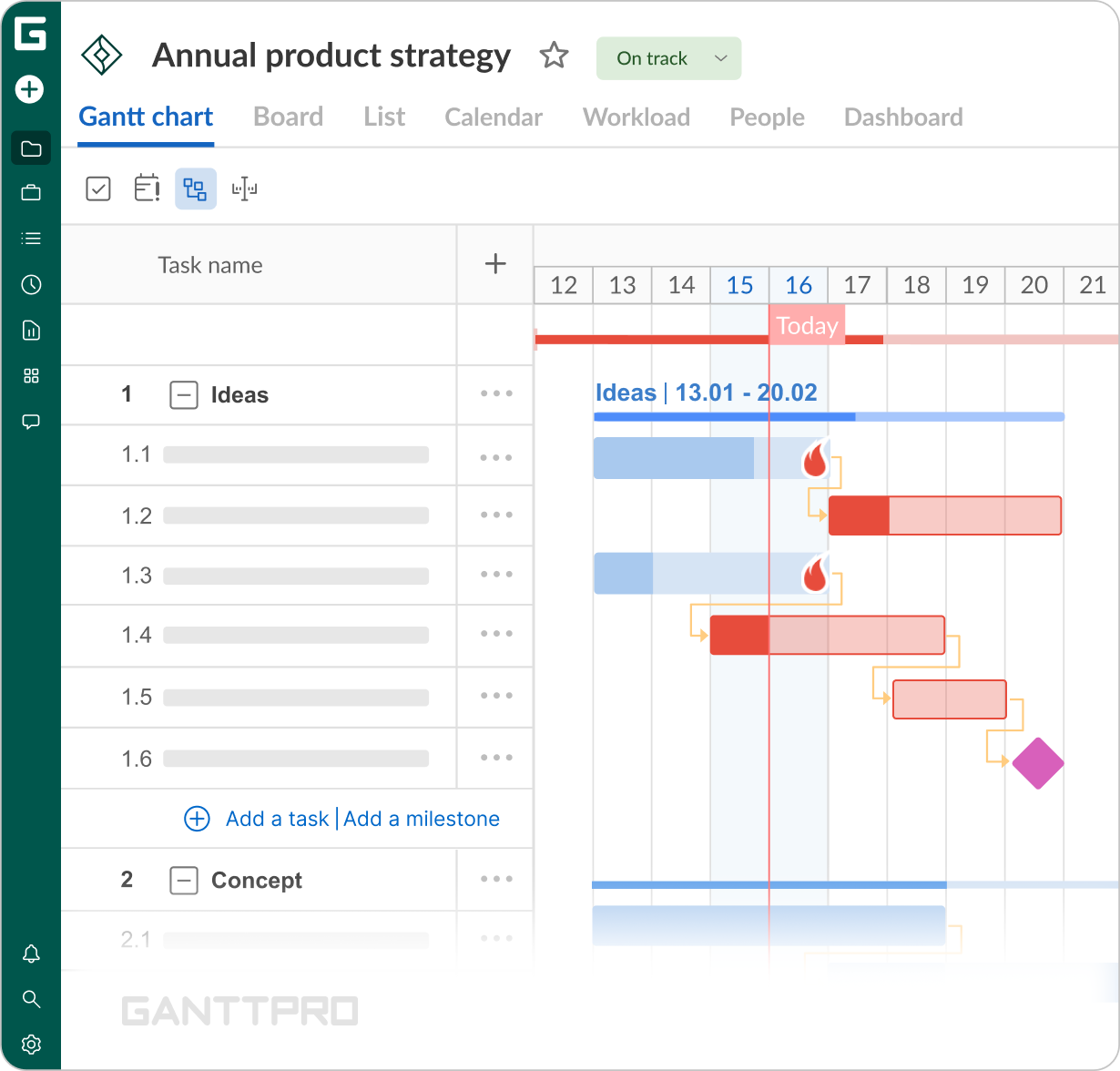
Easily track task completion in real time and stay on top of everything from start to finish.In just one click, see which activities have the biggest impact on your timeline.
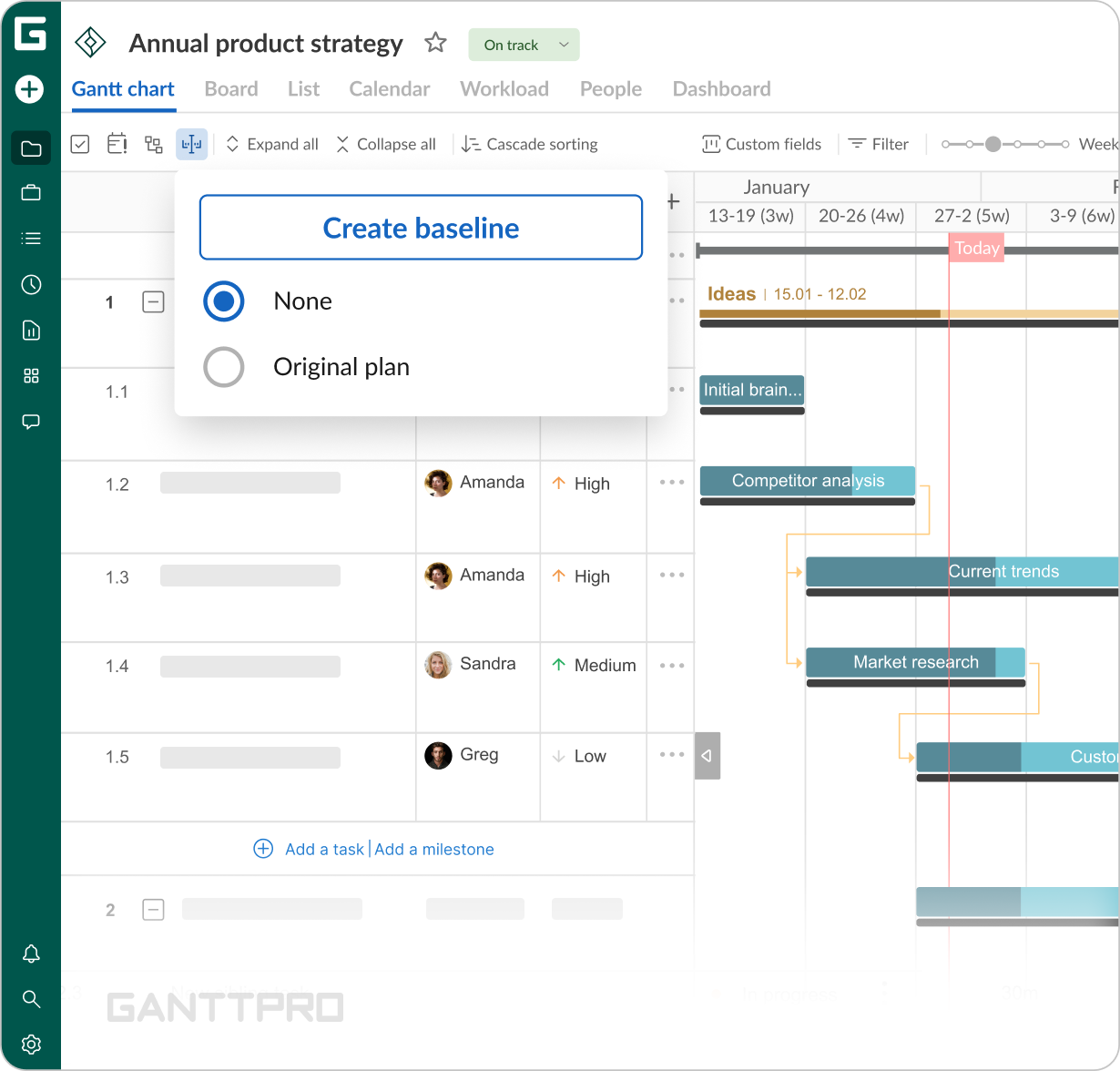
Quickly spot which tasks are critical and which have room to shift.Set a clear reference point for your project.
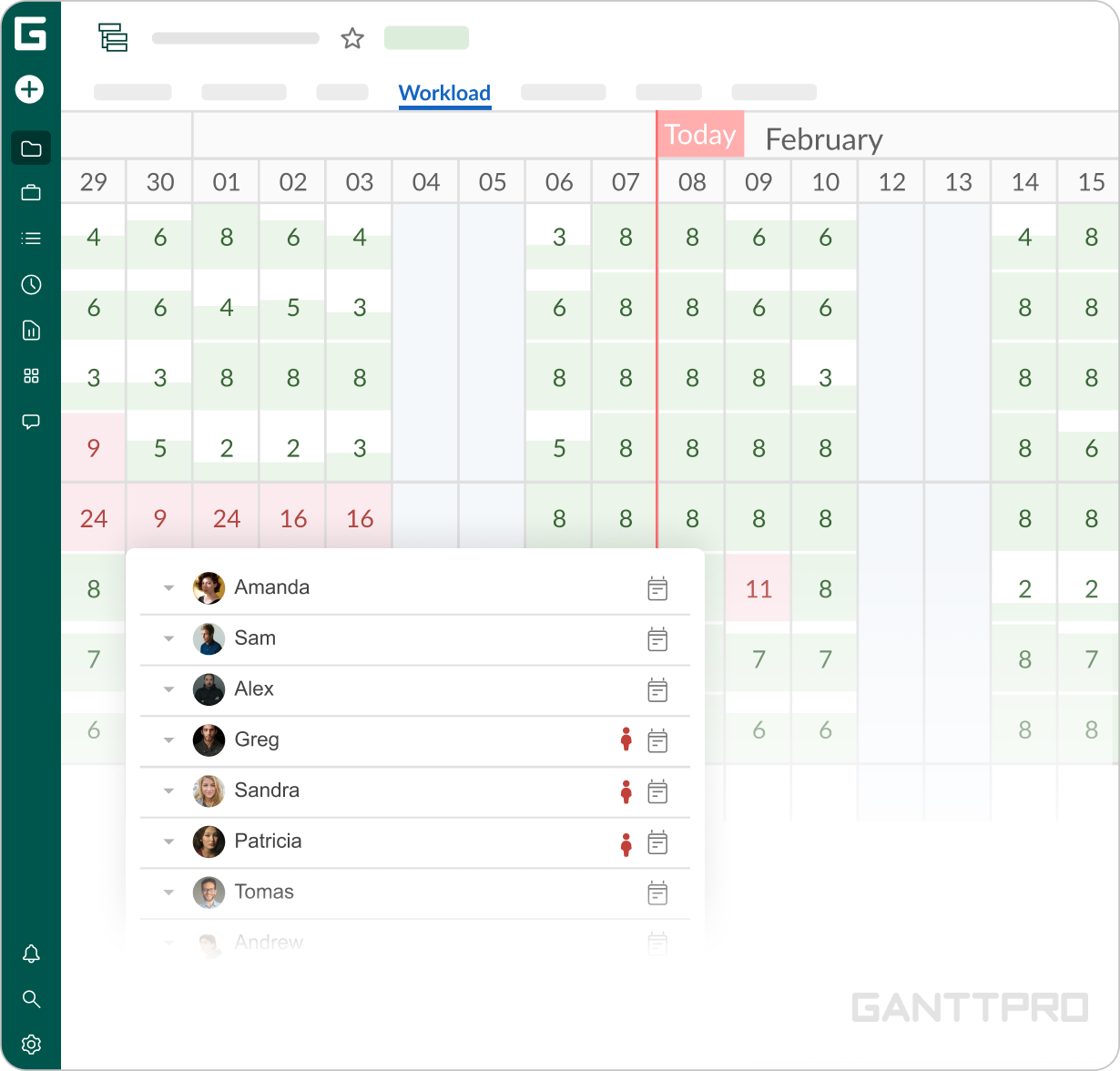
Compare your current schedule with the original plan and quickly spot deviations.Keep your team’s workload balanced.
See who is overloaded or, on the contrary, has extra capacity. Redistribute tasks and make sure work is spread evenly across your team.Plan and manage projects and even portfolios together in real time.
Collaborate and share updates instantly, so everyone always has access to the latest information.
Why convert Excel to a Gantt chart with GanttPRO
Your project already exists in Excel. GanttPRO turns that information into a project timeline.


Project data in static cells

Interactive Gantt chart project timeline
Constant manual adjustments
Drag-and-drop and autoscheduling
No dependency management
4 types of drag-and-drop dependencies
Formulas to see project progress
Progress tracking with indicators and statuses
No transparent collaboration
Real-time collaboration with instant updates
GanttPRO offers powerful Gantt chart functionality. What once felt difficult to manage in spreadsheets became much easier to control in GanttPRO. We now have a much clearer view of timelines, dependencies, and task order, while notifications and collaboration features help us keep the team aligned daily.
Read full storyLloyd StephensSupernovaGlobal operations director
Best Excel to a Gantt chart converter
Import your spreadsheet here.
Top-rated project management software by leading business software review platforms







Frequently asked questions about Excel to a Gantt chart converter online
- Yes. If your spreadsheet already includes project information like WBS, task names, their start and end dates with duration, assignees, and budget, you are only one quick step away from an interactive Gantt chart. It simply gives that same data a more practical form for project management. For automatic conversion, use GanttPRO, one of the best tools to convert Excel spreadsheets to project plan Gantt charts. For detailed instructions, see the How to section above.
- GanttPRO is dedicated professional project management software. Excel is a spreadsheet program for organizing, analyzing, and calculating data. In some cases, you can use Excel to create project plans. But those plans are too simple and basic. Also, and it is crucial, it lacks many of the features needed for professional project planning and management. There, you won’t find built-in task dependencies, resource planning, workload management, project tracking, and collaboration tools. In other words, in Excel, you can organize a task list and somehow follow its completion. However, you can’t create a project timeline or schedule which are needed in professional project management. GanttPRO offers a robust Gantt chart view along with Board, List, Calendar, and Portfolio views. It also supports workload management, team collaboration, and other project management features that help teams plan, manage, track, and deliver projects more efficiently.
- GanttPRO can import Excel columns that correspond to all standard fields in the software: Work breakdown structure, Task name, Assigned, Progress, Status, Priority, Start and End dates, Duration, Estimation, Time log, Budget, and Actual cost. There are three exceptions: Predecessor, which is on our development roadmap; Creator, which is always set to the one who imports; and Creation date, which is set to the import date by default.
Excel columns that do not correspond to standard GanttPRO fields can be mapped to custom fields with the help of AI. - Yes. See our Knowledge base for more information.
- Yes. GanttPRO imports XLSX and CSV files.
- During the import process, you will see your Excel column names and GanttPRO fields in dropdown menus. This allows you to choose which Excel column corresponds to which GanttPRO field. You can also map columns to existing custom fields or create new ones.
- Empty cells or missing data in your Excel spreadsheet are not a problem. However, two columns must contain values: Number that corresponds to the WBS field in GanttPRO and Task name.
- Yes. Your work breakdown structure (WBS) will be preserved during import. GanttPRO checks the corresponding field in your Excel project plan to make sure the WBS is correct. If it is not correct, you won’t be able to complete the import until errors are fixed. You can correct the WBS during the import process or directly in your Excel spreadsheet.
- Yes. After importing your spreadsheet data to GanttPRO, you can edit your Gantt chart as needed. You can add or delete tasks, change their start and end dates, their duration and estimation, connect tasks with dependencies, add milestones, assign team members or virtual resources, and much more.
- No. The original Excel spreadsheet remains unchanged.
- Not yet. The current version of the Gantt chart maker from Excel does not support importing task dependencies. However, this feature is included in our development roadmap.
- Yes. You can map imported resources from Excel to real project members or virtual resources or even create new virtual resources during import if needed.
- No. You can import tasks without any limits.
- Not yet. This feature is on our development roadmap.
- It takes less than a minute to create a Gantt chart from Excel data. The better prepared your Excel file is, the fewer mistakes it contains, the faster the process will be.
- Yes. Once you import your data to GanttPRO, you can create task dependencies and add milestones to fit your project’s needs. You can also add milestones during the import process.