

Connect AI agents to GanttPRO MCP
Get project updates, create tasks, and update timelines from the AI tools you already use.
Connect MCP Claude
 ChatGPT
 Gemini
 Microsoft Copilot
 Cursor
Add a go-to-market review before launch.
Added Go-to-market review to Product Launch, right before Launch readiness.
1M+ project managers build and
manage Gantt charts with GanttPRO
How to connect GanttPRO MCP in 4 steps
No API key needed. Add GanttPRO to your AI assistant as a custom connector and sign in with your GanttPRO account.
- Step 1
Copy the server URL
In GanttPRO, go to Settings → MCP and copy the MCP server URL.
- Step 2
Add a custom connector
In Claude, ChatGPT, or another assistant, add a custom connector named GanttPRO and paste the URL.
- Step 3
Sign in and approve access
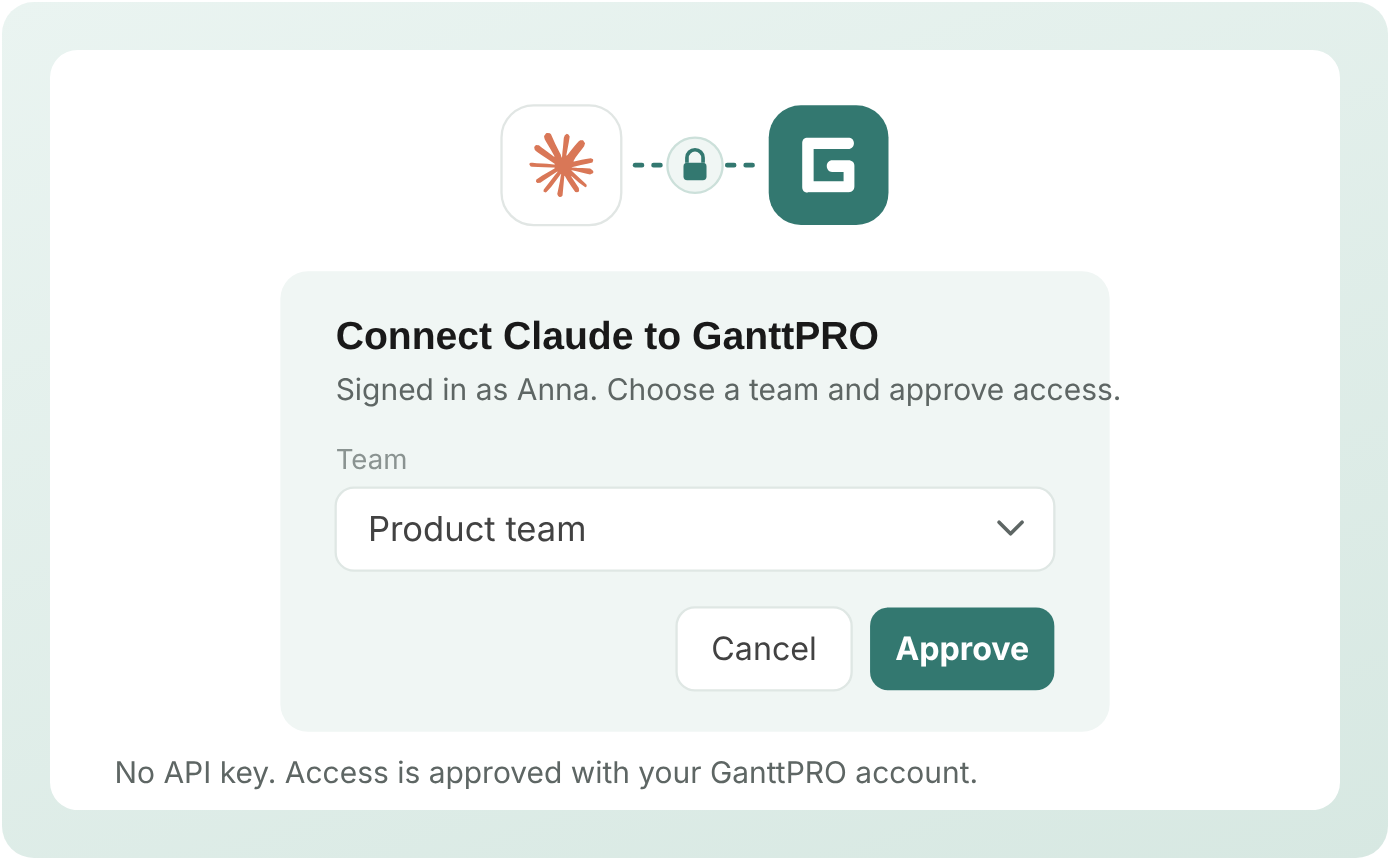
Click Connect, sign in to GanttPRO, choose your team, and approve access.
- Step 4
Ask about your projects
Turn GanttPRO on in your chat and ask what’s due, add tasks, or move deadlines.
On Claude Team or Enterprise, an organization owner adds the connector first. Members then click Connect.
Bring GanttPRO into the AI tools you use
Connect GanttPRO to an AI assistant or agent that supports Model Context Protocol (MCP).
- Ask for a status update without digging through the plan.
- Turn call notes into tasks or a plan into a client update, using the other tools your assistant already connects to.
- Claude
- ChatGPT
- Gemini
- Microsoft Copilot
- Cursor
- Other MCP-compatible tools
Your assistant gets your access and nothing more
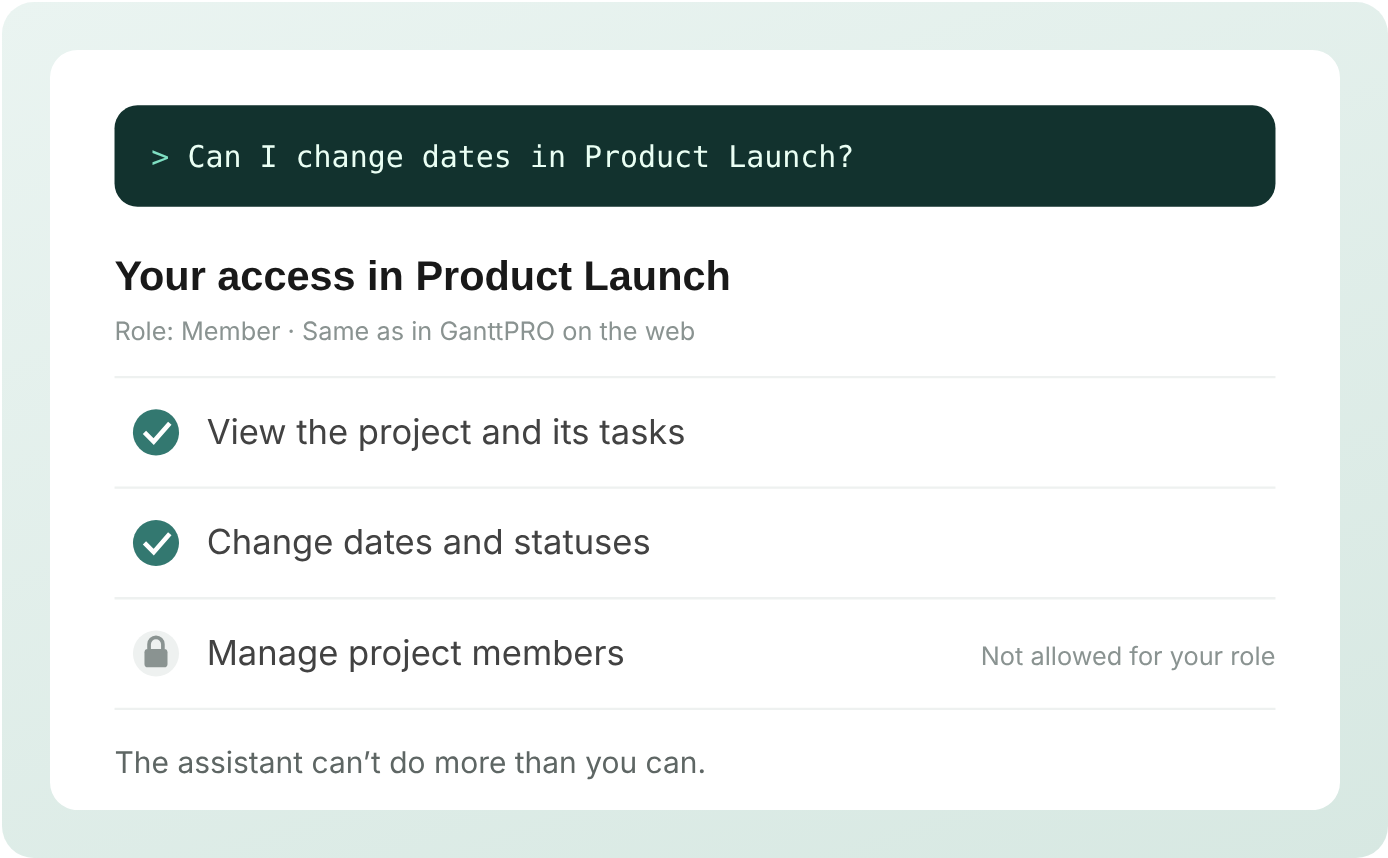
GanttPRO MCP works on behalf of one person and follows the same roles and plan limits as GanttPRO on the web.
The assistant follows your role and permissions in GanttPRO. If you can’t see a project or change a task, neither can it. Ask it what you’re allowed to do in a project, and it will explain.
No API key. When you connect, you sign in to GanttPRO in your browser, choose your team, and approve access.
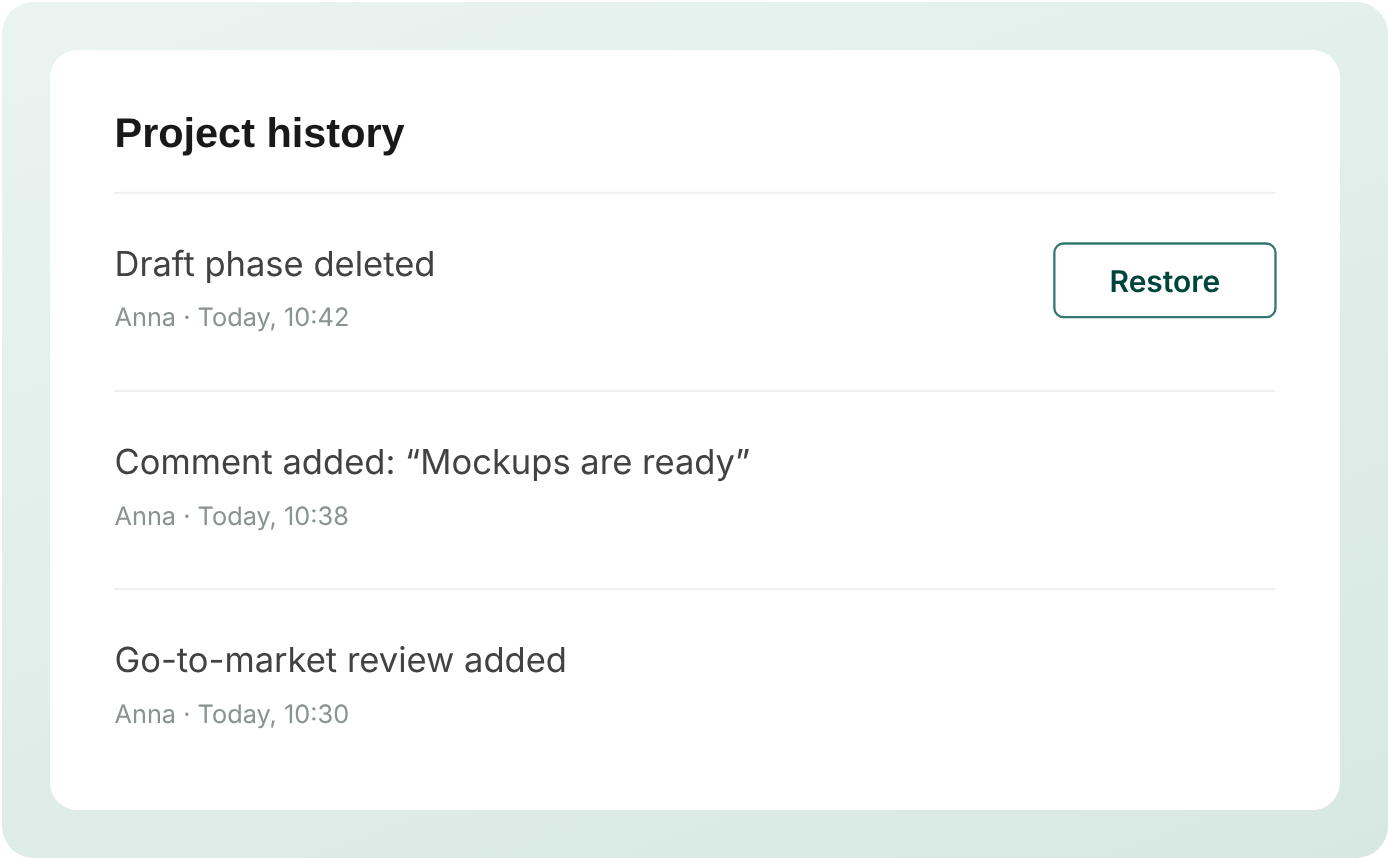
Changes are saved in the project’s History and can be undone there. Comments go out under your name. To disconnect, remove the GanttPRO connector from your assistant.
What can you do with GanttPRO MCP?
Ask questions about live project data or make changes from the same conversation.
Check project status
Are we on track for the product launch? What’s overdue?
See what’s assigned
What’s assigned to Anna this week?
Draft a status report
Draft a launch readiness update for stakeholders based on this week’s progress.
Create and assign tasks
Add a go-to-market review before launch and assign it to Steven.
Update deadlines
Move the beta testing deadline to next Friday.
Spot risks early
What’s at risk in the product launch? Which milestones could slip?
Everything your assistant can do in GanttPRO
Your assistant can read and change what you can in GanttPRO, based on your role and permissions.
Projects
Read- List and find projects
- Project overview: dates, progress, overdue and unassigned work
- Phases with dates and progress
- Risks, blocked tasks, and milestones in danger
- Your role and what you can change
- Project calendar and holidays
Tasks
Read- Search tasks across all projects
- Filter by status, assignee, dates, or overdue
- Counts and breakdowns, totals by custom field
- Full task details, dependencies, and logged time
- Task comments, newest first
People and resources
Read- Find people and resources by name or email
- Open tasks for each person across projects
- Project team and workload
- Working hours, vacations, and days off
Custom fields
Read- Fields and options in a project
- Field values, filters, and totals
- Team fields, to avoid duplicates
- Team colors
Plan
Change- Create and rename projects
- Create up to 50 tasks and milestones at once
- Edit up to 50 tasks at once: dates, status, priority, progress, and more
Schedule and assign
Change- Add and remove dependencies, with auto scheduling
- Assign people and resources, with a preview first
- Add virtual resources such as crews or equipment
Fields, comments, cleanup
Change- Add custom fields to a project
- Add comments and edit your own
- Delete tasks. Every change can be undone from project History
In ChatGPT, GanttPRO MCP also works withConnectorsDeep research
How teams use GanttPRO MCP
Pick your role to see what changes.
Project managers
Without MCPChase owners for updates, then move every date by hand.
With MCPSay what changed and let the assistant reschedule the plan.
Design review slipped to Monday. Push it and shift everything that depends on it.
3 tasks moved · dependencies kept
GanttPRO MCP frequently asked questions
- GanttPRO MCP is an MCP server that connects GanttPRO to AI assistants using Model Context Protocol, an open standard for connecting AI tools to external apps and data.
- You can connect Claude, ChatGPT, Cursor, and other AI clients that support custom MCP connectors. In ChatGPT, it also works with connectors and deep research. Setup depends on your client.
- Exactly what you can see on the web. The assistant signs in as you and follows your role and permissions.
- Yes, within your permissions. It can create projects and up to 50 tasks at a time, change dates and statuses, link tasks, assign people and resources, delete tasks, and add comments.
- Yes. A person with the right permissions in your team can turn off changes for all assistants in Settings → MCP.
- Yes. Every change is saved in the project’s History and can be undone there. Before changing assignments, you can ask the assistant to show what will change without saving anything.
- Yes. The server queries GanttPRO when your assistant makes a request, so answers use current tasks, deadlines, and project status.
- Yes. GanttPRO MCP works on all plans, including the free trial.
- GanttPRO MCP is currently available on all plans.
- No. There is no separate copy or sync. Each answer uses what’s in GanttPRO when your assistant makes the request. Your AI client handles your conversations under its own policies.
- No. Copy the server URL from Settings → MCP, add it as a custom connector in your assistant, and sign in. No API key or code needed.
- No. You sign in with your GanttPRO account when you connect.
- Remove the GanttPRO connector in your assistant. If someone leaves your team, their assistant loses access at once.
Connect your AI agents to GanttPRO
Bring live project context into your AI conversations and turn requests into updates in GanttPRO.
Connect agents